Want to send data from your Mediatoolkit account to other apps, but we don’t have an integration yet? Now you can do it in minutes, no coding required, by using the most popular connection tool in the world - Zapier.
Zapier lets you connect Mediatoolkit to 1,000+ other web services via automated connections called Zaps. Zaps automate your day-to-day tasks and build workflows between apps that otherwise wouldn't be possible.
Each Zap has one app as the Trigger, where your information comes from and which causes one or more Actions in other apps, where your data gets sent automatically.
Mediatoolkit is always a Trigger app.
Getting Started with Zapier
Sign up for a free Zapier account, from there you can jump right in. You can use Zapier to automatically send Mediatoolkit data to other apps:
- Name of the mention
- Link to the mention
- Number of shares
- Number of likes
- Number of comments
- Positive, neutral, negative sentiment
- Influence score
- Engagement percentage
- Author name
- Source (X (Twitter), Websites, Facebook...)
- Language
To help you hit the ground running, here are some popular pre-made Zaps that connect Mediatoolkit to other apps. Setting them up is incredibly easy and only takes a couple of minutes:
How do I connect Mediatoolkit to Zapier?
- Log in to your Zapier account or create a new account.
- Navigate to "Connected Accounts" from the top menu bar.
- Now click on "Connect new account" and search for "Mediatoolkit"
- Use your credentials to connect your Mediatoolkit account to Zapier.
-
Once that's done you can start creating an automation! Use a pre-made Zap or create your own with the Zap Editor. Creating a Zap requires no coding knowledge and you'll be walked step-by-step through the setup.
- Need inspiration? See everything that's possible with Mediatoolkit and Zapier.
A step-by-step guide to connecting Mediatoolkit with Zapier
Choosing Mediatoolkit as a Trigger app
Mediatoolkit is (for now) only a Trigger app in Zapier. If you are not familiar with Zapier, read an example below to understand the terminology easier:
How Mediatoolkit connects to other apps via Zapier
Somebody posts about your brand on X (Twitter). Mediatoolkit picks it up, and at the same time sends the information to Zapier saying essentially “hey, a new mention appeared, here is the data”. The new mention is a trigger.
When Zapier receives a trigger, it commands another app, commonly known as your Action app, to do something, like send an email or save a link.
Example:
Trigger: New mention appears in Mediatoolkit
What Zapier does: Connects Mediatoolkit and Slack so that you can data can automatically be forwarded from one app to another
Action: Slack posts an alert about a new mention in your channel
How to set up Mediatoolkit as a trigger apps
- Login to Zapier and select Make a Zap.
- You will be prompted to choose a trigger app. Search for and choose Mediatoolkit.
- Click – Trigger – New Mention.
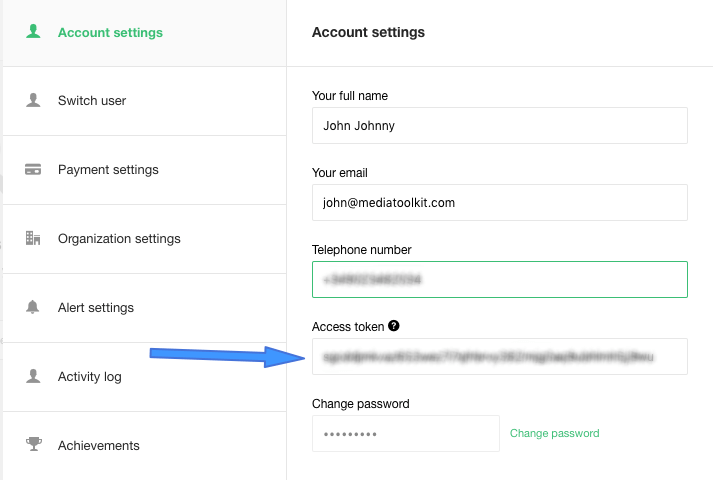
- You will next have to paste your Mediatoolkit access token. The token is located in your Mediatoolkit account, under Account Settings.
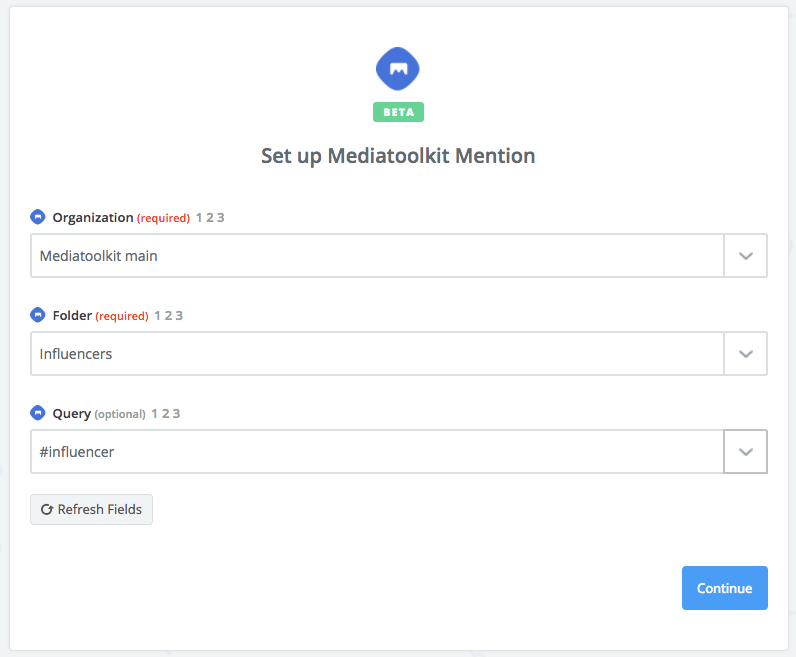
- Once you connect, the system will ask you to choose the folder or query you want to get triggers from. This is the most important step as this determines the data you will receive.
The organization and the folder are mandatory fields, while the query field is optional.
When to use folder as a trigger?
When you have several queries (keywords) in the same folder, for example Competitors or Brands, and you want to track all of them.
When to use query as a trigger?
When you just need to track a single query, like an individual competitor or an individual brand.
Once you’ ve set up the query you want to have triggered, the system will run a test to confirm everything is okay. After that, you are ready to choose another app to connect with Mediatoolkit.
Example: Trigger set up for keyword #influencer:
How to set up an Action app (Example: Slack)
Zapier enables you to choose 1000+ Action apps for your Mediatoolkit account.
Here is how to set up a Zap that sends alerts for new mentions to Slack channels.
- Choose the Action app from the dropdown menu.
- Connect your Action app account with Zapier.
- Choose the type of action you want to perform. In case of Slack, this is “send a channel message”.
- Choose the details regarding the mention (example: choose where you want to send it, what is the name of the bot, etc.)
Set up a custom message and the data you want sent from Mediatoolkit.
This is perhaps the most important part for any Mediatoolkit integration with Zapier. Regardless of whether you are sending a text, an email, or data to a sheet, you’ll want to be careful in choosing which data you want to send. Check out the Zapier formatting doc for individual apps to help you do it perfectly.
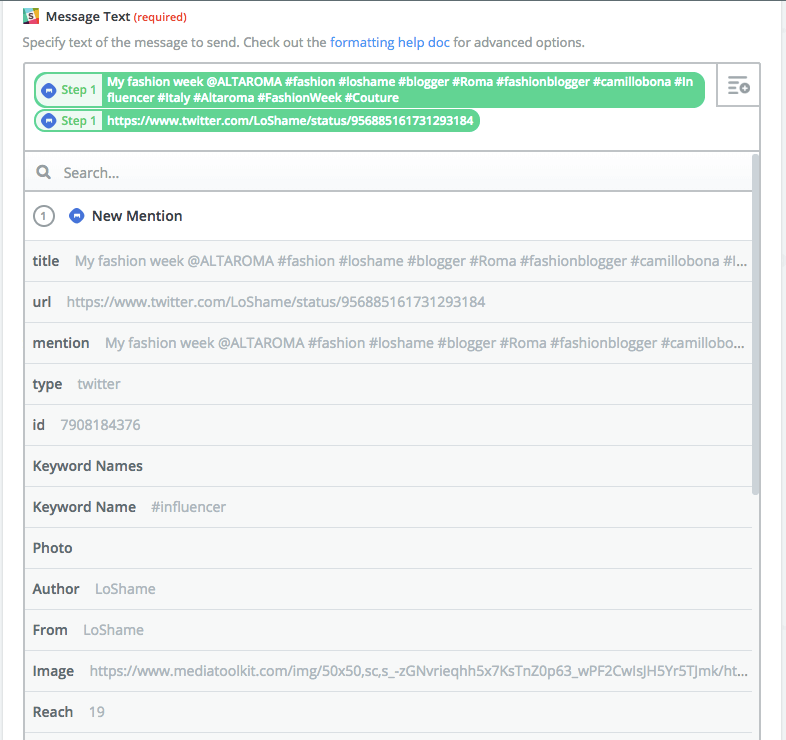
In the above example, Zapier will send the name of the mention and the URL to the Slack channel. The final result will look like this in your Slack channel:

Multi-step Zaps
In addition to simple A-B connections, with Zapier you can establish more complex connections between apps, also simple to set up with no coding.
Want to keep all your mentions seen by more than 1000 people in Google Sheet? Done in seconds using Mediatoolkit - Filter by Zapier - Google Sheets.
Need to send all mentions with positive sentiment once a day to your boss? Automate that email by setting up a Mediatoolkit - Digest by Zapier - Email connection.
There are tons of possibilities between Zapier and Mediatoolkit.
If you need more help, or need us to guide you through setting up your perfect Zapier connection, just contact your account manager, simply send us a chat message in the bottom right corner, or send an email.
Happy Zapping!